Image Generation & Modification
- Midjourney
- Clipdrop - Stable Diffusion
- Adobe Firefly
- NovelAI
An AI tool used via the Discord software to generate state-of-the-art AI images.
A full AI toolbox website that challenges Midjourney.
Requires Adobe Photoshop & Creative Cloud. Can be tested within Photoshop Beta with Generative Fill.
Solid and cheap but not free tool to generate AI anime images. Also a great story-telling AI. For what we have, the Story AI is completely free.
Chatbot AI
- ChatGPT
- GPT4
- Bing Search with ChatGPT
OpenAI’s robust and well-known chatbot. It has different levels, with the free model GPT 3.5 Turbo being fast and capable of performing most tasks very well. Access requires login unless using a 3rd party app like ChatGPT.ch that does not store your conversations.
OpenAI’s paid version of ChatGPT. It includes the functionality of Bing search, the use of the web as plugins, and a new code interpreter.
The official search engine from Microsoft, which has been heavily integrated with ChatGPT. It provides a direct interface with GPT on your browser and allows you to also upload images.
Text AI Tools
- DeepL Write
- Paraphrase Tool
- Notions.so
- Otter.ai
Improve your writing with DeepL Write.
Great tool to get your text rewritten.
AI Injected One Note (unfortunately not entirely free).
Transcribes for you and allows easy further use.
AI Music
- Soundraw
Create your own little piece of musical art with Soundraw .
AI Presentations
More Tools
- Word counter - Zeichenzähler: https://charactercalculator.com/de/
- AI Search Engine - There's An AI For That: https://theresanaiforthat.com/
- AI Logo Creator: https://looka.com/onboarding
- Color Palettes: Colors.co
- Favicon Generator: favicon.io
Local LLM WebGUI
Get your own LLM up and running on your own Local Machine.
Text-Generation-WebGUI from Oobabooga
A1111 Stable Diffusion WebGUI
Visual Node WebGUI - ComfyUI
Text-Generation-WebGUI from Oobabooga
- text-generation-webui → Direct Link to the One Click Windows Installer: oobabooga_windows.zip
- Unzip the file at a location where you want to have all your LLM & WebgUI files.
- Run the
start_windows.bat- Provide Information about your GPU. Once finished, press Ctrl + C to end the batch file. - Run the
update_windows.bat - Run the
start_windows.batagain to start the WebGUI on http://127.0.0.1:7860/
Embeddet Web View
A1111 Stable Diffusion WebGUI
This page is to explain how to setup the Web GUI for Local Stable Diffusion AI LLMs
webGUI Source:
https://github.com/AUTOMATIC1111/stable-diffusion-webui
For Windows + Nvidia - One Click Installer
Download the zip from here:
https://github.com/AUTOMATIC1111/stable-diffusion-webui/releases/download/v1.0.0-pre/sd.webui.zip
Installation on Windows 10/11 with NVidia-GPUs using release package:
- Download sd.webui.zip from v1.0.0-pre and extract its contents.
- Run update.bat.
- Run run.bat.
Open the WebGUI on http://127.0.0.1:7860/
Embedded WebView
Visual Node WebGUI - ComfyUI
Direct Download - Windows + Nvidia (GPU Optional)
Download the .zip and extract it to where you wanna store it.
Ensure enough space for the models is given at that directory.
run_nvidia_gpu.bat
Embedded WebView
Get Large Language Models (LLM's) - Hugging Face
Hugging Face – The AI community building the future.
Recommendet LLMs
- TheBloke/WizardLM-30B-Uncensored-GPTQ
- stabilityai/stable-diffusion-xl-base-1.0
- meta-llama/Llama-2-7b
- meta-llama/Llama-2-70b-chat-hf
- runwayml/stable-diffusion-v1-5
- stabilityai/stable-diffusion-xl-base-0.9
- PygmalionAI/pygmalion-6b
- TheBloke/Wizard-Vicuna-30B-Uncensored-GPTQ
- TheBloke/Wizard-Vicuna-13B-Uncensored-GPTQ
Open LLM Leaderboards
watch the most trending AI Models
Install LLMs in the WebGUI A1111 & oobabooga
Copy the username/LLMname
Go into the WebGUI > Model tab
Paste into the Download custom model or LoRA (E.g. upstage/llama-30b-instruct-2048 or TheBloke/WizardLM-30B-Uncensored-GPTQ or TheBloke_vicuna-13B-1.1-GPTQ-4bit-128g)
Hit Download, if it doesn’t work, try another LLM. (GTPQ models are highly performant)
Now you should have your Models in your Model Drop down list.
Install LLMs in ComfyUI
Navigate into the ComfyUI folder
Go into models
diffusers is for your diffusion models, for example: sd_xl_base_1.0.safetensors
loras is as the name suggests for LORAs as example: sd_xl_offset_example-lora_1.0.safetensors
upscale_models is also given by its name for your Upscale Models for example: RealESRGAN_x4plus_anime_6B.pth
VAE is something I still have to try out as well as UNET.
ComfyUI Guide
Once ComfyUI is started, you can load one of the workflow.json files.
Load workflow.json
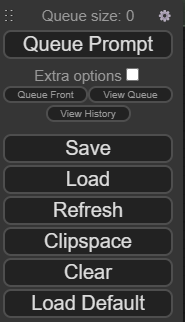
Click on Load on the Menu at the right bottom side and select the workflow.json file you want.
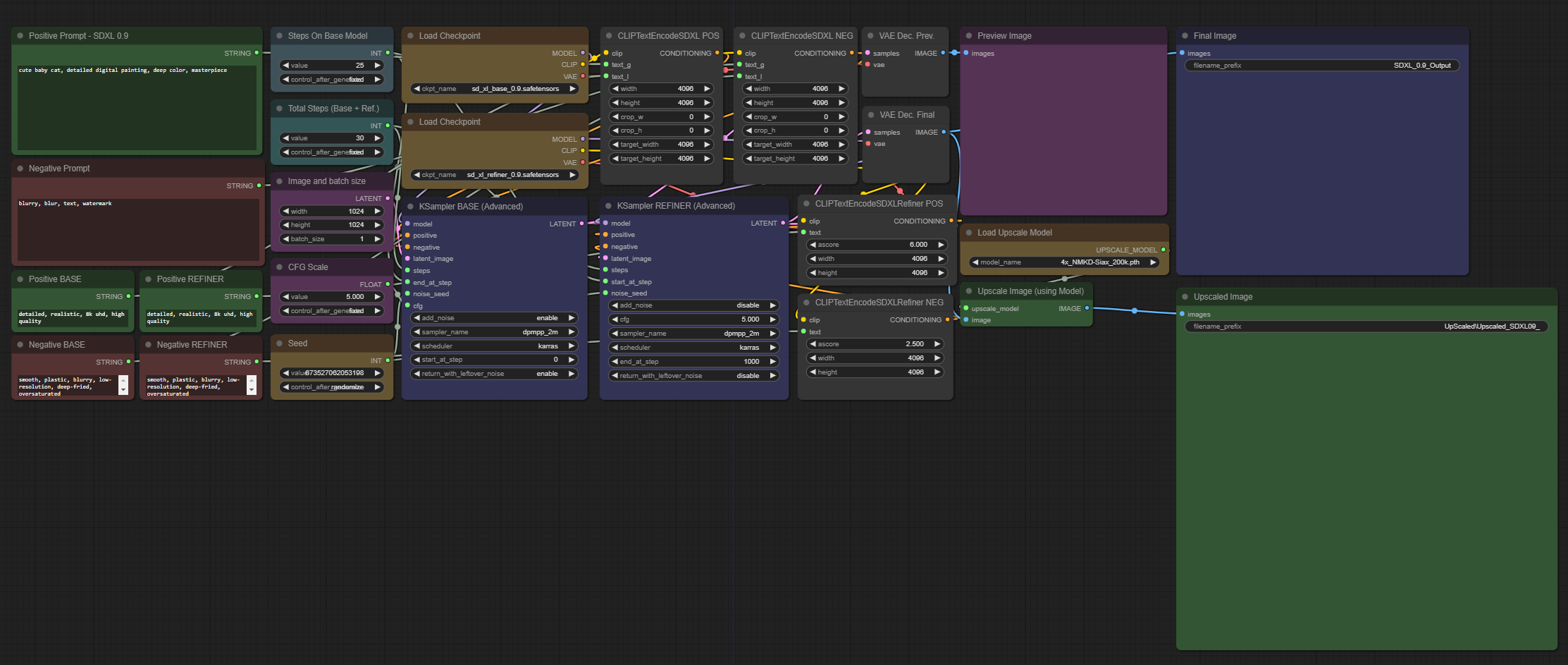
Once you've loaded the .json file it will look similar to this.
Load the Models
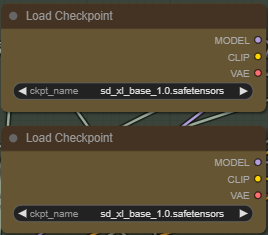
Load your Diffuser Model
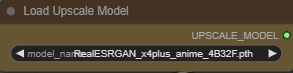
Load your Upscaling Model
Setup the Prompt
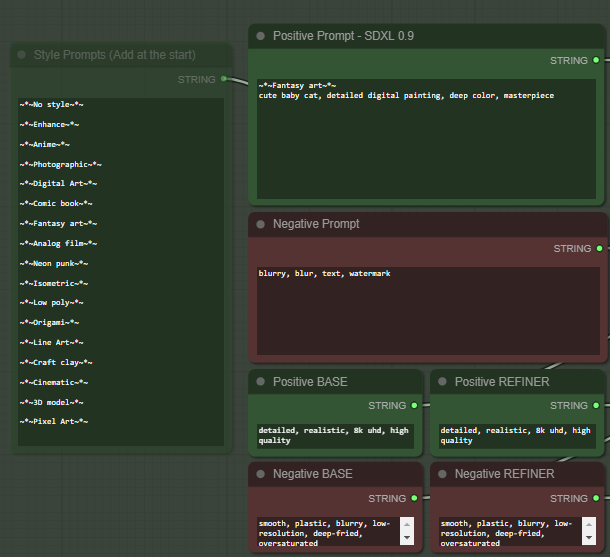
Define your Positive and Negative prompt.
you can add a styling formatted shown,
you can find it in the TrippleWorkflow.json
Image size and Batch size
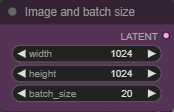
Define the size of your images and the batch size
note: using the same amount of pixel as given in 1024x1024 should result in the best results.
you can change the aspect ratio but its recommended to use the same ammount of pixel in total.
Image to Image
select the TrippleWorkflow.json
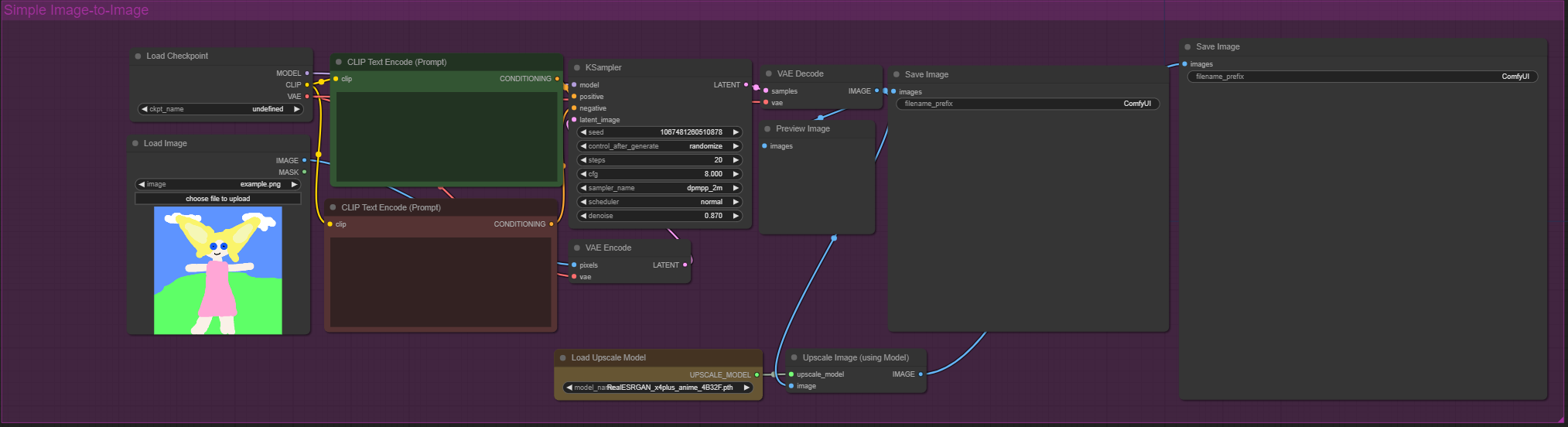
Select your image
optional: provide a positive prompt
optional: provide anegative prompt
Load the Checkpoint Model, you can use the sd_xl_refiner_1.0.safetensor
Load the Upscaling Model, you can use the same as before.
-
Click on Queue Prompt to start generating